
Maintenance Mode & Cache Management
Don't want to set your site live just yet? Need to make some updates? Or noticing content that won't update no matter what you try? The Website Settings/Maintenance Mode area has you covered with two handy tools: Maintenance Mode and Cache Management.
Where are these features located?
- Log in to your website as an admin and click on the Settings area located in the black bar on your screen.
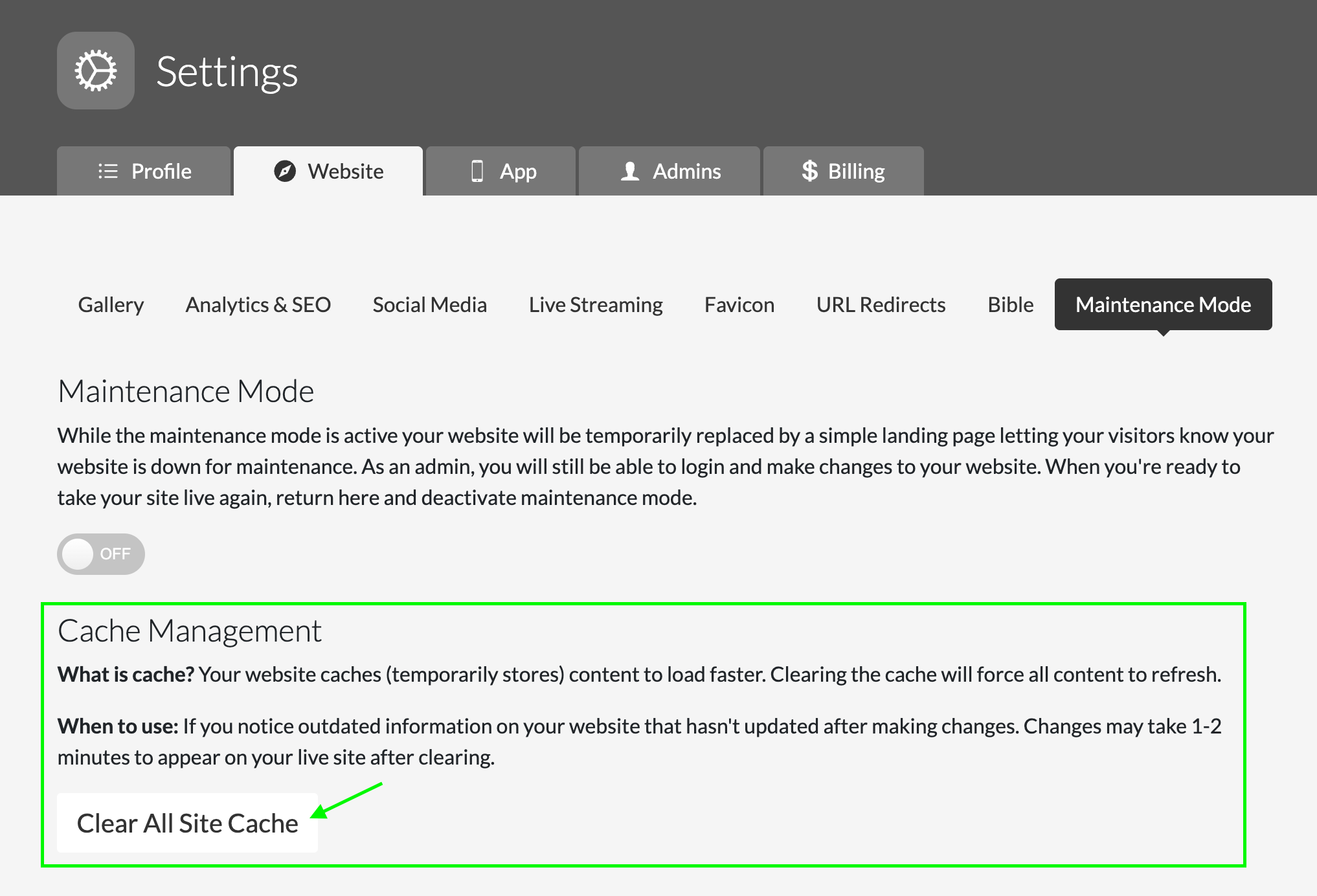
- Click on the Website tab, then select Maintenance Mode from the row of options. Here you'll find both the Maintenance Mode toggle and the Cache Management section.
Maintenance Mode
Maintenance Mode comes in handy when you're in the process of updating your site, or for any reason you need to temporarily take your site down. It's easy to turn on and off anytime you're logged in as an admin.
How it works: Toggle the switch to "ON" to activate Maintenance Mode.
What will website visitors see? When Maintenance Mode is turned on, a pre-built landing page appears in place of your website, letting visitors know your site is temporarily down for maintenance. As an admin, you can still log in through the prompt on that page and continue working on your site as usual. When you're ready to go live again, simply return to this page and toggle Maintenance Mode back to "OFF."

Cache Management
What is cache? Your website caches (temporarily stores) content so it loads faster for visitors. Because of this, changes you make aren't always reflected right away — clearing the cache forces your site to refresh and pull the most current version of your content.
When should I use it? Use the Clear All Site Cache button any time you notice outdated information on your site that hasn't updated after you've made changes — for example, edited text, images, or settings that still show the old version. After clearing the cache, allow 1–2 minutes for the changes to appear on your live site.
How to use it: Click Clear All Site Cache. That's it! Give it a minute or two, then refresh your site to see your updates live.
FAQs
Maintenance Mode
- How can I migrate my information from my old site to my new ChurchSpring website? Maintenance Mode gives you the opportunity to keep visitors off your site while you transfer your information into your new site, without them seeing it incomplete.
- I already connected my domain, but my site isn't ready yet. What do I do? When you first access your site, it's available through your subdomain and isn't easily searchable to visitors. But once your domain is connected, you can use Maintenance Mode until you're ready to bring your site live.
- I'm bored with my old layout and want to give my website a complete overhaul. How can I do that without visitors seeing it mid-update? Ministries are always growing, and your website should grow with you. Maintenance Mode is perfect for those times when you need to take your site offline to make bigger updates or restructures.
Cache Management
- I made a change to my site, but it's not showing up. What should I do? Head to Settings > Website > Maintenance Mode and click Clear All Site Cache. Give it 1–2 minutes, then refresh your site to see the update.
- How long does it take for changes to appear after clearing the cache? Typically 1–2 minutes. If you still don't see your changes after a few minutes, try refreshing your browser or clearing your browser's cache as well.
- Will clearing the cache delete any of my content? No. Clearing the cache doesn't delete or change any of your content — it simply forces your site to reload the most current version of everything that's already there.
- How often should I clear the cache? Only when needed. You don't need to clear it regularly — just use it when you notice your changes aren't showing up on the live site.
- Will clearing the cache affect my visitors while it's happening? No. Visitors will still be able to browse your site normally while the cache clears and refreshes in the background.