How To Enable Your YouTube Channel for Live Streaming
Your ChurchSpring Live Stream platform has a connection for live streaming to your YouTube channel. If you have never live streamed before, there are a few requirements:
- Your channel must be verified with a valid phone number.
- Your channel must have at least 50 subscribers to stream from a mobile device (but your desktop and webcam have no subscriber minimum).
Follow these steps to enable live streaming on your YouTube channel.
- Go to YouTube and sign in to your Google account.
-
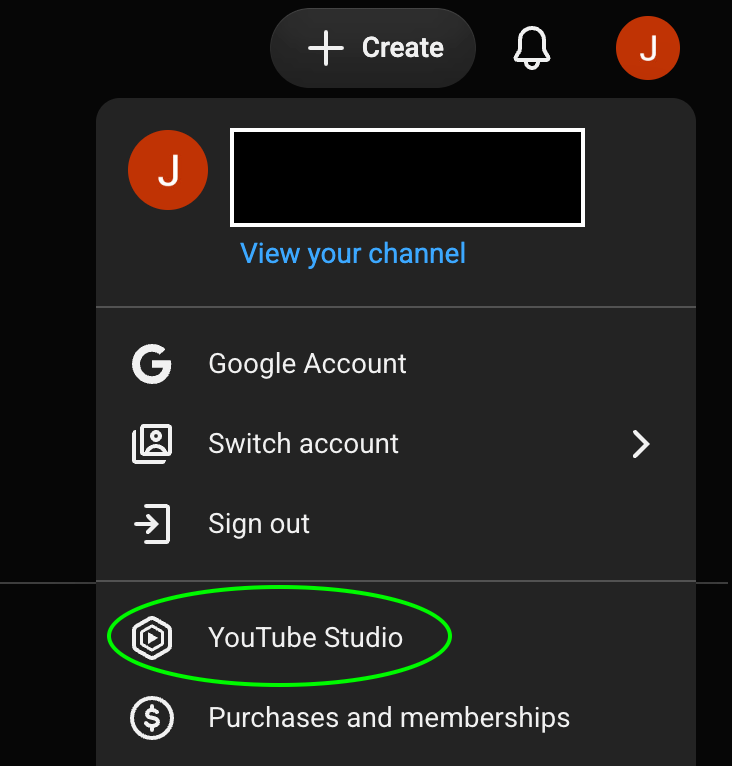
From your YouTube Channel dashboard, click your profile area in the top right corner. In the drop-down menu, select YouTube Studio:
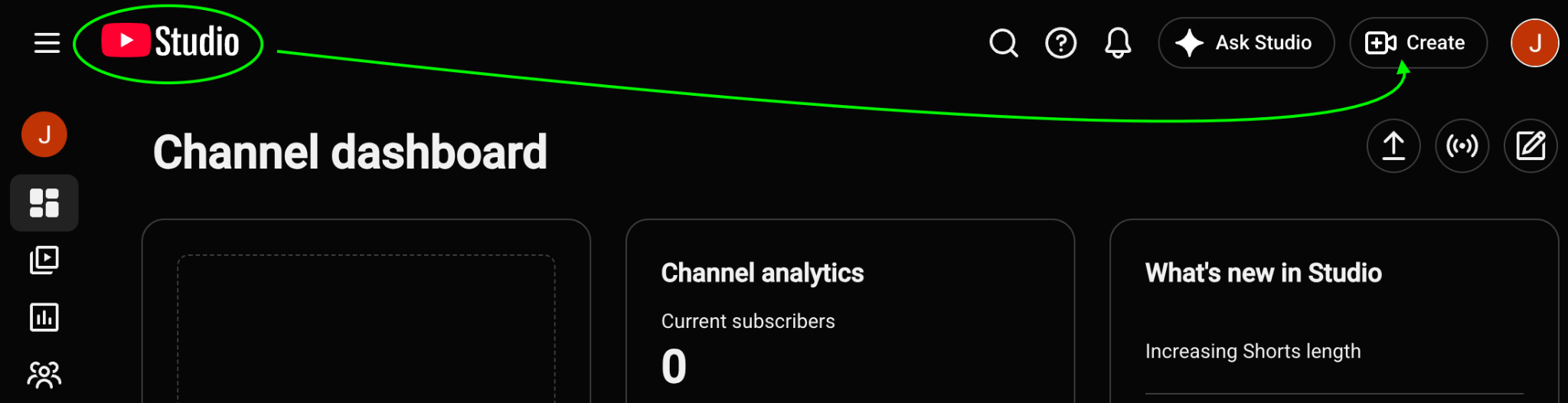
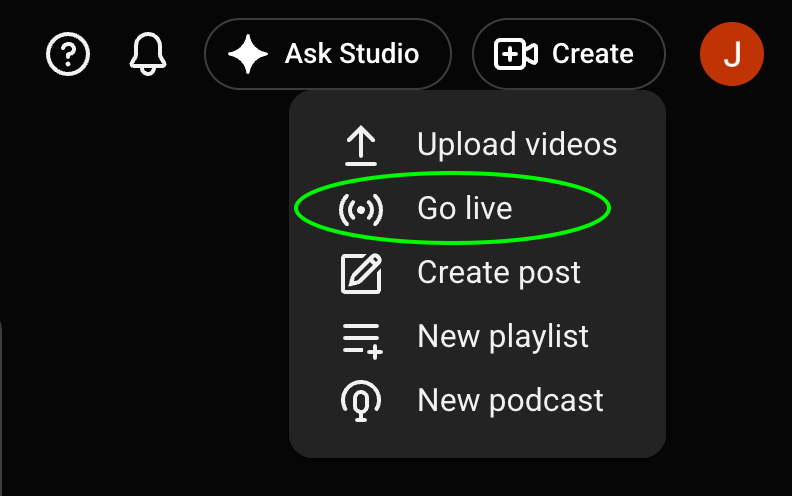
Once you are in the Studio, click Create and then Go Live.
-
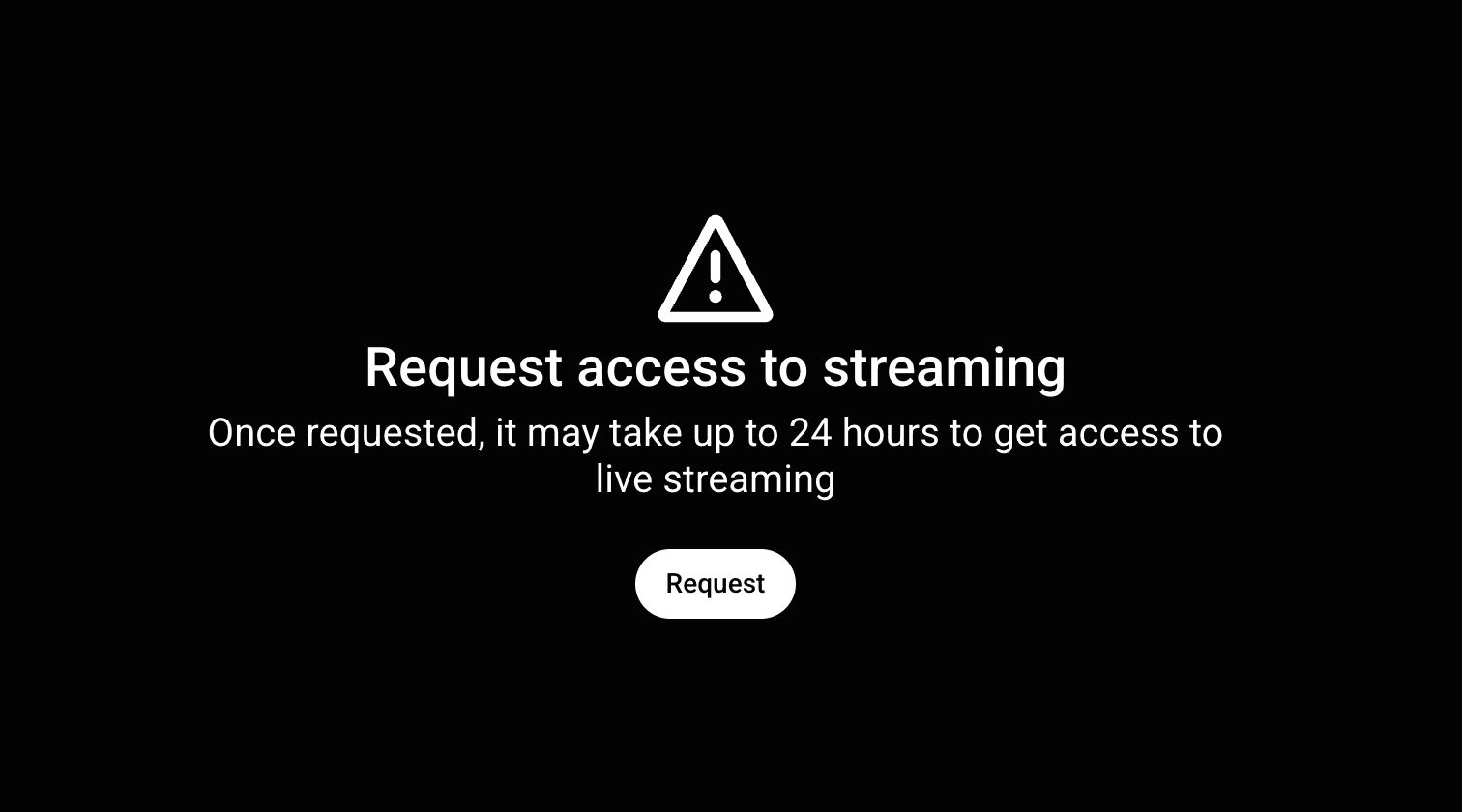
Click Request access if prompted.
- Complete the phone verification step by entering your phone number and submitting the code sent to your device.
-
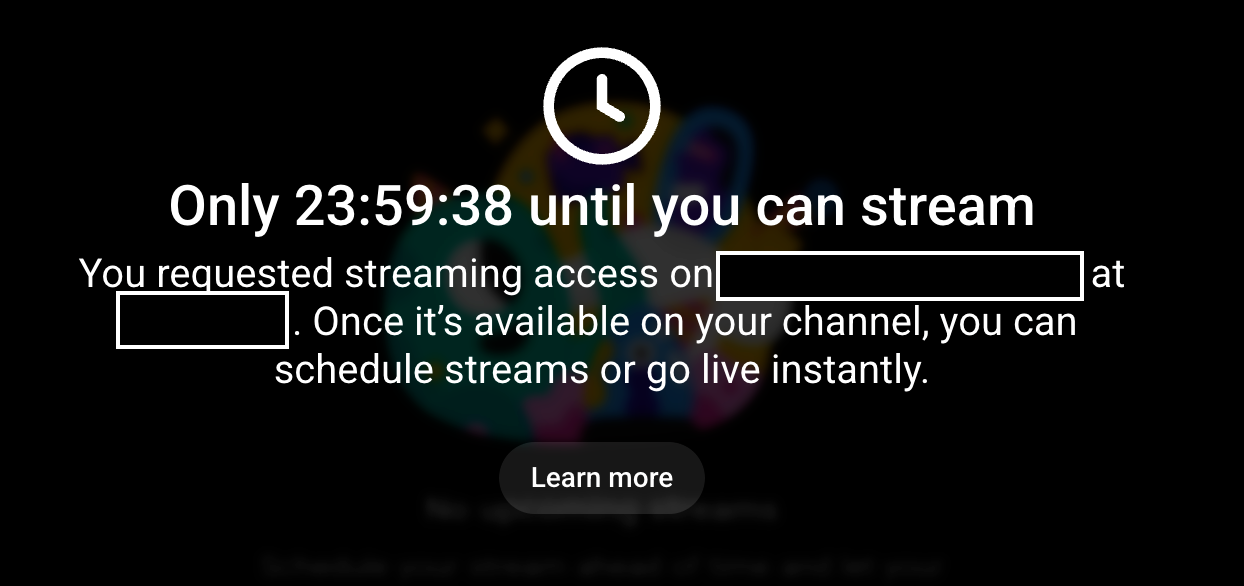
Wait up to 24 hours for YouTube to fully activate the live streaming feature on your channel.